NEXTCREW LEGACY
You have a spreadsheet of new Crew Members, or changes to make to hundreds of existing ones. In NextCrew Legacy you can bring them all in with one file instead of editing each record.
Summary
Go to Data Exchange › Data Import and import a file using the Crew Member template. NextCrew matches each row by its userid or internalid: if that ID is already in NextCrew, the record is updated; if it isn't, a new Crew Member is created. To update people you already have, run the Crew Export for Update report, change the file, and import it back. What goes wrong most: changing the ID columns by mistake, which creates new records instead of updating.
How to do it
- In NextCrew Legacy, go to Data Exchange and open the Data Import tab.
- Next to Crew Member, click Download to get the template.
- Add one Crew Member per row and fill every required column. Leave the ID blank for a new person.
- Save the file and close it in Excel.
- Select Crew Member, click Next, then Import File and choose your file.
- Read the success or failure message. Then open a few of the Crew Members to check them.
Where to find it
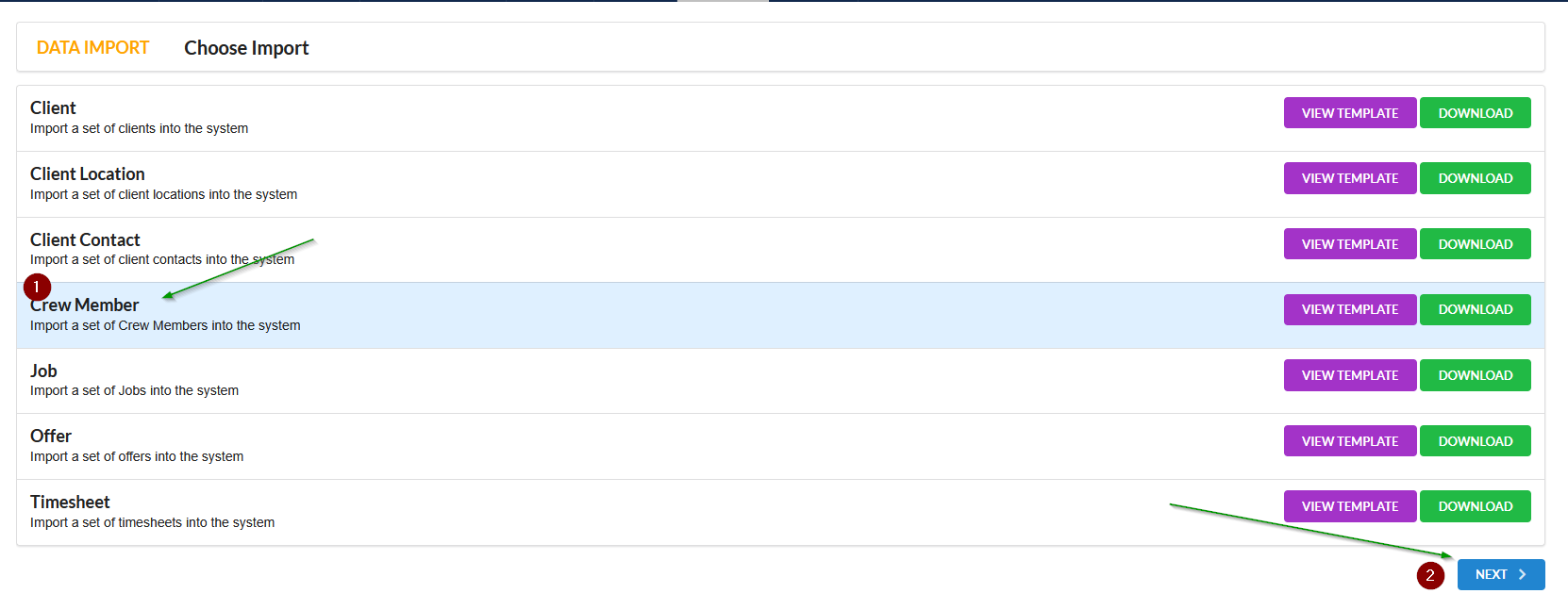
Steps 2 and 5. Select Crew Member, then click Next.
That's new Crew Members in. Below: updating people you already have, and what to do when an import fails.
On this page
Legacy or 2.0?
This guide is for agencies on NextCrew Legacy, at https://yourcompany.nextcrew.com. On NextCrew 2.0, see Import Your Data into NextCrew 2.0.
New or update: how each row is matched
| The row's userid or internalid | What NextCrew does |
|---|---|
| Already belongs to a Crew Member | Updates that Crew Member with the values in the row |
| Isn't in NextCrew, or is blank | Creates a new Crew Member |
So the ID columns decide everything. Don't change userid or internalid in a file unless you mean to change those IDs.
Update Crew Members you already have
- Run the Crew Export for Update report from the Reports section. It downloads your current Crew Member data in the import layout.
- Save a copy of that file before you change anything, so you can go back.
- Make your changes. Leave the userid and internalid columns as they are.
- Save the file and close it in Excel.
- Go to Data Exchange › Data Import, select Crew Member, click Next, then Import File and choose the file.
- Read the success or failure message, then check a few of the records you changed.
Before you import
- Use the latest template. Download it each time. An old one is the most common reason an import fails.
- Check the data. Especially for updates: every value in the row replaces what's on the record.
- Keep a backup of the export before you make bulk changes.
- Close the file in every program before you import it.
If something's not right
| What you see | Check this first | Who fixes it |
|---|---|---|
| The import failed | The file uses the Crew Member template and every required column is filled. Read the error message for the row and the problem. | You |
| The import won't start | The file is closed in Excel and every other program. | You |
| You got duplicates instead of updates | The userid or internalid in your file doesn't match the record. Export again with Crew Export for Update and keep those columns unchanged. | You |
| You can't find Data Exchange or the report | You may not have access. Ask your admin. | Your NextCrew admin |
Questions people ask
Can I add and update in the same file?
Yes. Rows with an existing ID update; rows without one create new Crew Members.
Where do I get the template?
On the Data Import tab, next to Crew Member. Click Download.
We're on NextCrew 2.0. Is this for us?
No. See Import Your Data into NextCrew 2.0.
Other ways people ask this
- How do I mass import Crew Members in NextCrew Legacy?
- How do I update many Crew Members at once?
- Why did my import create duplicate Crew Members?
- Where is the Crew Member import template?
Related guides
- Import and Export Data in NextCrew Legacy: every import type and getting data out
- Import Your Data into NextCrew 2.0: the same job on NextCrew 2.0
Was this article helpful?
That’s Great!
Thank you for your feedback
Sorry! We couldn't be helpful
Thank you for your feedback
Feedback sent
We appreciate your effort and will try to fix the article