There's a newer guide for this. See Find Your Way Around. This page stays here for reference.
The ability to filter by time zone in NextCrew is important because it ensures that you can view and manage jobs in the correct local time. This feature is especially valuable for teams working across different geographic locations, helping avoid confusion or scheduling errors. By aligning with the relevant time zone, it ensures accuracy in coordination, communication, and workflow management.
1. Navigate to Workspace > Calendar
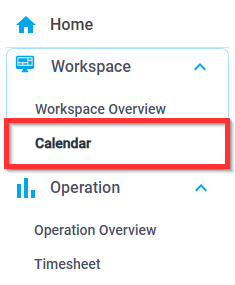
2. In the upper middle, select My Time Zone to change it

Time Zones Available
- Alaskan Standard Time (AKST): UTC - 9 hours
- Aleutian Standard Time (HST): UTC - 10 hours
- Atlantic Standard Time (AST): UTC - 4 hours
- Central Australia Standard Time (ACST): UTC + 9.5 hours
- Central Standard Time (CST): UTC - 6 hours
- Eastern Australia Standard Time (AEST): UTC + 10 hours
- Eastern Standard Time (EST): UTC - 5 hours
- Greenwich Standard Time (GMT): UTC ±0 hours
- Mountain Standard Time (MST): UTC - 7 hours
- Newfoundland Standard Time (NST): UTC - 3.5 hours
- Pacific Standard Time (PST): UTC - 8 hours
- Samoa Standard Time (SST): UTC - 11 hours
- Western Australia Standard Time (AWST): UTC + 8 hours
Was this article helpful?
That’s Great!
Thank you for your feedback
Sorry! We couldn't be helpful
Thank you for your feedback
Feedback sent
We appreciate your effort and will try to fix the article